Help centerGet startedUpdated Oct 8, 2026
Set up your first project
Add your site, check the brand profile, pick topics and prompts, and choose the three AI models to track.
Setting up a project takes about five minutes. You give GEO Radar your website; it researches your brand, proposes topics, prompts and competitors, and you check each step before the first scan runs.
Sign in
Sign in with Google, or enter your work email and click Send Magic Link. The link in the email works once and expires after 10 minutes. A new account gets its own workspace automatically.
Create the project
Add project details
Enter your domain only, without a page path (for example
yourbrand.com), plus your brand name, location, language and timezone. The timezone sets when your nightly scan runs.When you click Next, GEO Radar reads your website, writes a brand profile and researches your direct competitors.
Verify brand profile
Check the description, industry, audience, brand identity, products and services, and the problems you solve. Click a tag to edit it. This profile shapes your prompts and is used to spot wrong claims later, so make it accurate.Review topics
GEO Radar proposes five topics: categories where AI answers usually name competing products. Delete any that don’t fit and add your own; you need exactly five.Review prompts
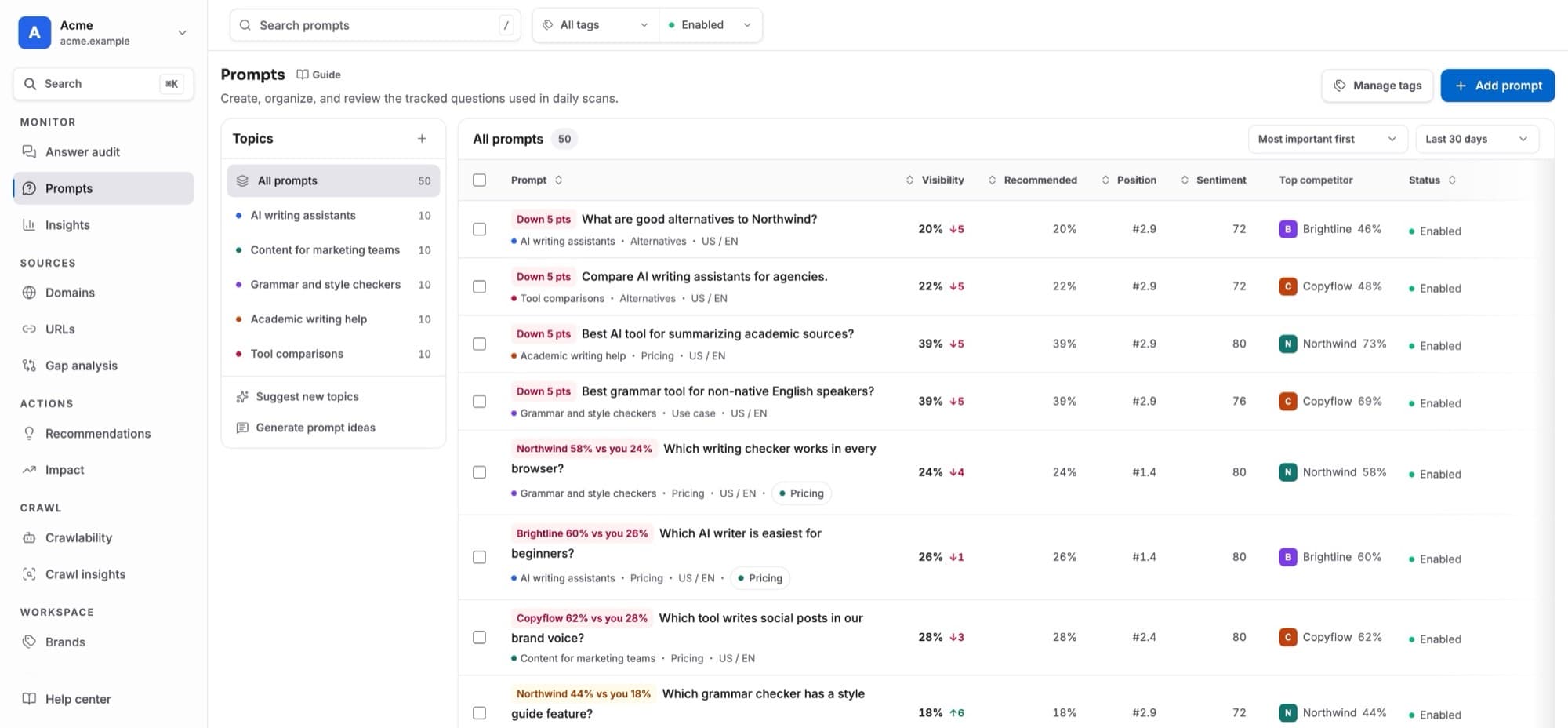
Ten prompts per topic are written for you, 50 in total. They are unbranded buyer questions: recommendations, comparisons, alternatives, use cases, pricing and trust.
Remove or add prompts as you like. Keep at least 50, with at least 10 in each topic, then click Looks good.
Choose your AI models
For your first project, a short workspace setup follows. Pick exactly three AI models to track (ChatGPT, Perplexity, Google AI Overview, Google AI Mode, Gemini or Copilot). Then answer three quick questions about your role, your priority and how you found us. Open workspace queues your first scan.
What happens next
- Your competitors are added: up to five confident matches are tracked straight away, and the rest wait under Suggestions in Brands.
- The first scan runs, and Answer audit shows its progress. When it finishes, answers are read and the numbers fill in over the following minutes to hours.
- After that, the project is scanned every night between 02:00 and 02:30 in its timezone.
Adding another project
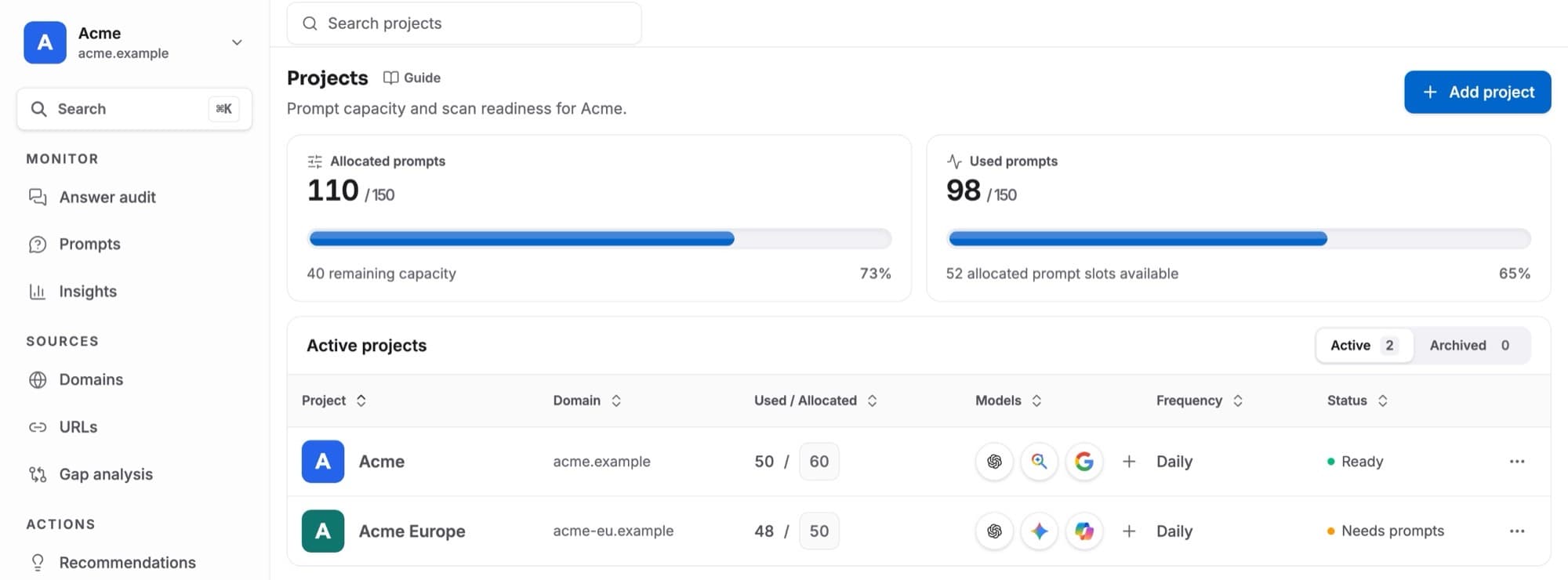
Use Add new project in the project switcher, or Add projecton Projects. The steps are the same, and the new project uses your workspace’s three models. New projects start as drafts. Give a project at least 40 prompts on Projects to start its nightly scans.
If you leave halfway, the project shows Finish setup in the project switcher. Opening it continues where you stopped.