Help centerWorkspaceUpdated Oct 8, 2026
Projects
One project per website: prompt allocation, AI models, scan readiness, adding and archiving.
A project tracks one brand and its website. This page shows every project in the workspace: how many prompts each may scan, which AI models it uses, and whether it is ready for the nightly scan.
Prompt capacity
The cards at the top show the workspace’s prompt capacity. Allocated prompts is how much has been given to projects. Used prompts is how many enabled prompts those projects actually have.
Click the Used / Allocated value of a project
The Prompt allocation panel opens.Enter the new allocation
Use 0 to keep the project as a draft, or 40 or more to scan it every night.Click Update allocation
The change applies from the next scan. Capacity you free up becomes available to other projects.
AI models
Every project is asked on exactly three AI models: choose from ChatGPT, Perplexity, Google AI Overview, Google AI Mode, Gemini and Copilot. Click a project’s model icons to change them, then Update models.
Status
A project scans every night only when it is Ready. Hover a status to see why.
Project status
- ReadyScans at its nightly time
- DraftAllocation is 0
- Under minimumAllocation below 40
- Needs promptsFewer enabled prompts than allocated
- Needs modelsNot exactly three models
- PausedThe daily schedule is off
- ArchivedNot scanned; reports kept
Frequency shows Daily with the scan time in the project’s timezone, or Paused.
Add, open, archive
- Add project starts the same setup as your first project. See Set up your first project.
- A project whose setup isn’t finished shows Finish setup in the project switcher. Opening it continues where you left off.
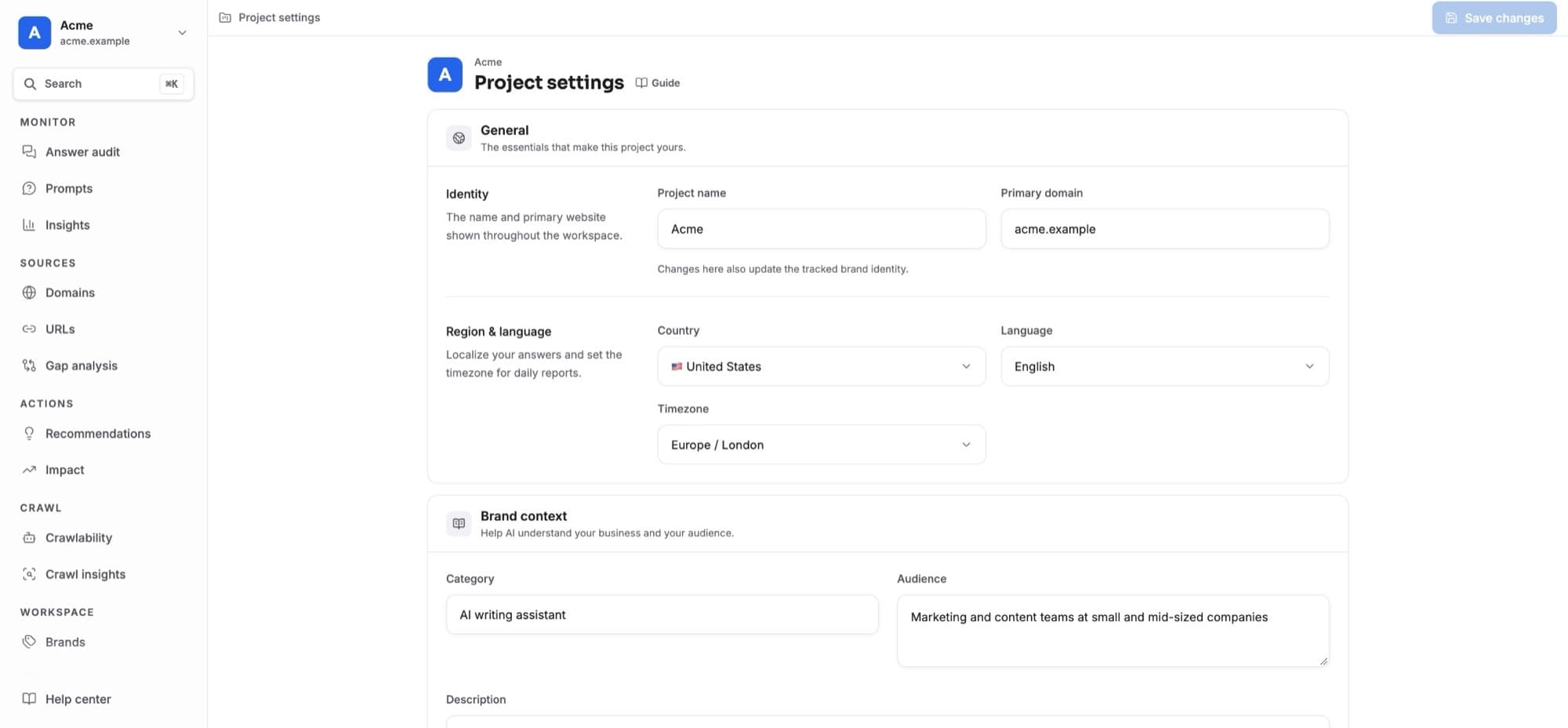
- The row menu opens the project’s dashboard, settings, prompts or brands.
- Archive project stops its scans and frees its allocation. Its reports stay available, and Restore project on the Archived tab brings it back.
Owners and admins manage projects; editors and viewers can open them.