Help centerGet startedUpdated Oct 8, 2026
Find your way around
The sidebar, project switcher, search, back links and the filters that every analytics page shares.
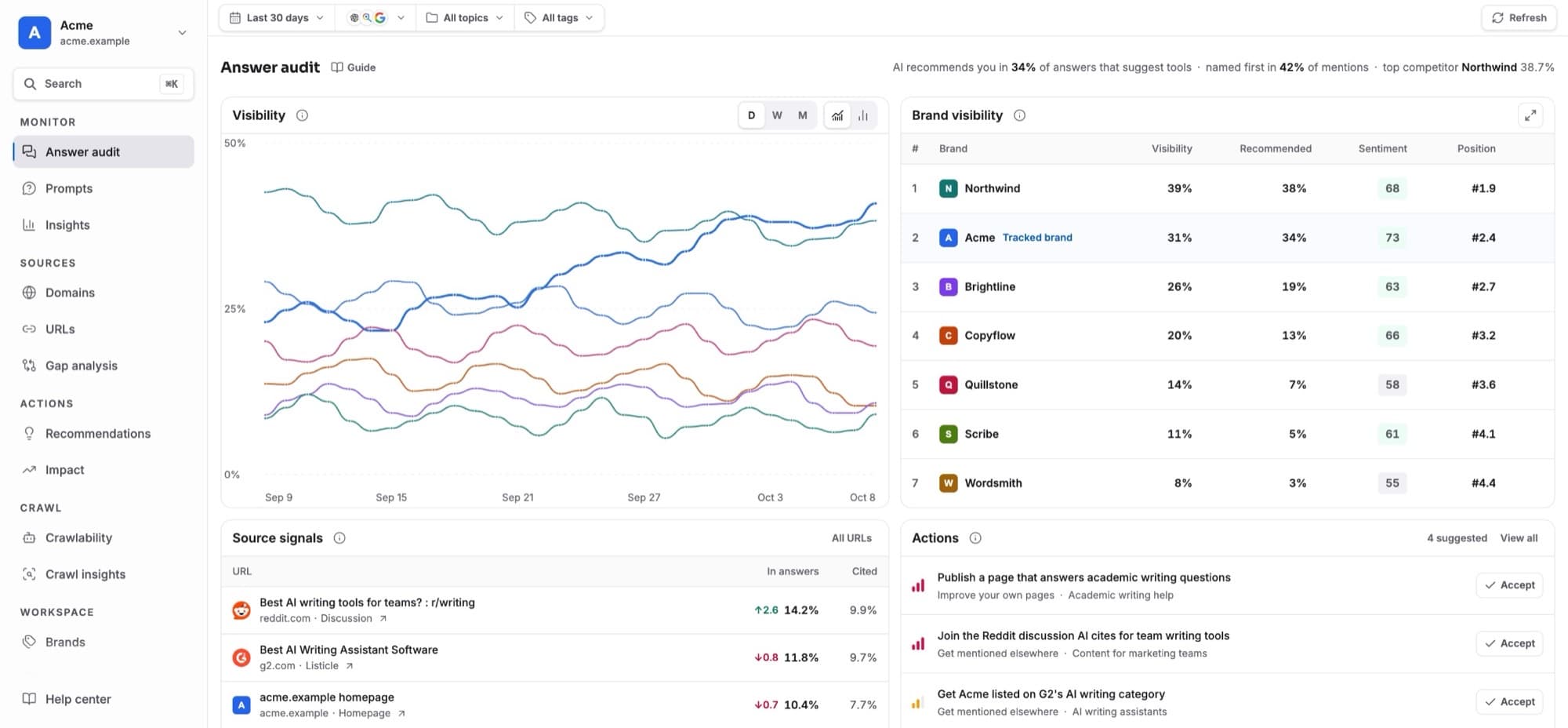
The sidebar follows the way you work: watch the answers, understand the sources, act, and check your site. A few shortcuts make moving between pages fast.
The sidebar
- Monitor
- Pages: Answer audit, Prompts, Insights
- Sources
- Pages: Domains, URLs, Gap analysis
- Actions
- Pages: Recommendations, Impact
- Crawl
- Pages: Crawlability, Crawl insights
| Group | Pages |
|---|---|
| Monitor | Answer audit, Prompts, Insights |
| Sources | Domains, URLs, Gap analysis |
| Actions | Recommendations, Impact |
| Crawl | Crawlability, Crawl insights |
| Workspace | Brands, Members, Projects, Settings |
On a phone, open the sidebar with the menu button at the top left. Your date, model, topic and tag filters follow you between the analytics pages.
Switching projects
Click the project name at the top of the sidebar. The menu lists every project; the open one has a check. It also holds Add new project and Logout. To switch workspace, sign in again and choose one.
Search
Press ⌘ K (Ctrl K on Windows), press /, or clickSearch in the sidebar. Search finds prompts, topics, tags, brands, actions, domains, cited pages and pages of the app.
- A prompt
- Opens its answers in Answer audit. ⌘ ↵ opens the prompt for editing instead.
- A topic or tag
- Opens Insights filtered to it.
- A domain or page
- Opens its source details.
- An action
- Opens the recommendation.
- Any word
- “Answers that mention …” lists every answer containing it.
Before you type, you see your recent picks and quick actions for your role: Add a prompt,Add a competitor, Invite a member, Change AI models,Answers that need attention, Show wins. Use ↑ ↓ to move and↵ to open.
Going back
- When a link takes you to another page, for example from an action’s evidence to an answer, a ← Recommendations button appears at the top left. It returns you to exactly where you were: same filters, scroll position and open item.
- Open answers and actions are part of your browser history, so the browser’s Back button closes them.
- Detail pages, such as a domain’s, have a back arrow at the top left that returns to the list as you left it.
Getting help
- Every page has a Guide link beside its title that opens that page’s guide.
- Help center at the bottom of the sidebar opens all guides.
- In search, type a question such as “add a competitor” to find the matching guide section.
- Guides open in a new tab, so your page keeps its filters, open answer and scroll position.
- The i buttons next to panel titles explain a number in one or two sentences, right where it appears.
Keyboard shortcuts
- ⌘ K
- Where: Anywhere
- Action: Open or close search
- /
- Where: Anywhere (on Prompts: the prompt search)
- Action: Search
- Esc
- Where: Menus, dialogs, selections
- Action: Close or clear
- ← →
- Where: An open answer
- Action: Previous or next answer
- ⌘ ↵
- Where: Search, on a prompt
- Action: Edit the prompt
| Keys | Where | Action |
|---|---|---|
| ⌘ K | Anywhere | Open or close search |
| / | Anywhere (on Prompts: the prompt search) | Search |
| Esc | Menus, dialogs, selections | Close or clear |
| ← → | An open answer | Previous or next answer |
| ⌘ ↵ | Search, on a prompt | Edit the prompt |